Problem
Folders outside the cloud, no backup
Projects on C:\ or D:\ aren't synced — a disk failure means data loss.
With Any Folder SyncPick a folder and the app moves it to the cloud; from then on every change is uploaded.
 Download free
agentify.pl / Products / Any Folder Sync
Windows app · OneDrive · Google Drive · Dropbox
OneDrive, Google Drive and Dropbox only sync their own directories. Any Folder Sync lets you sync any folder on your disk — for example C:\projects — without moving files by hand and without changing the paths your programs rely on. The app safely moves the data into the cloud of your choice and leaves a transparent link in the old location.
Free appWindows 10/11 · no admin rights · per-user install

Problem → solution
Three situations familiar to anyone who keeps files outside the cloud directory.
Projects on C:\ or D:\ aren't synced — a disk failure means data loss.
Moving a folder by hand breaks shortcuts, projects and configurations that point to the old location.
node_modules or .git mean hundreds of thousands of files your cloud should never sync.
Features
How it works
Any folder outside the cloud — the app checks whether it's suitable for sync.
Folders like node_modules stay on the local disk and don't burden the cloud.
Files move to the cloud and a transparent link appears in the old location.
The cloud client syncs the folder, programs run unchanged. You can restore everything at any time.
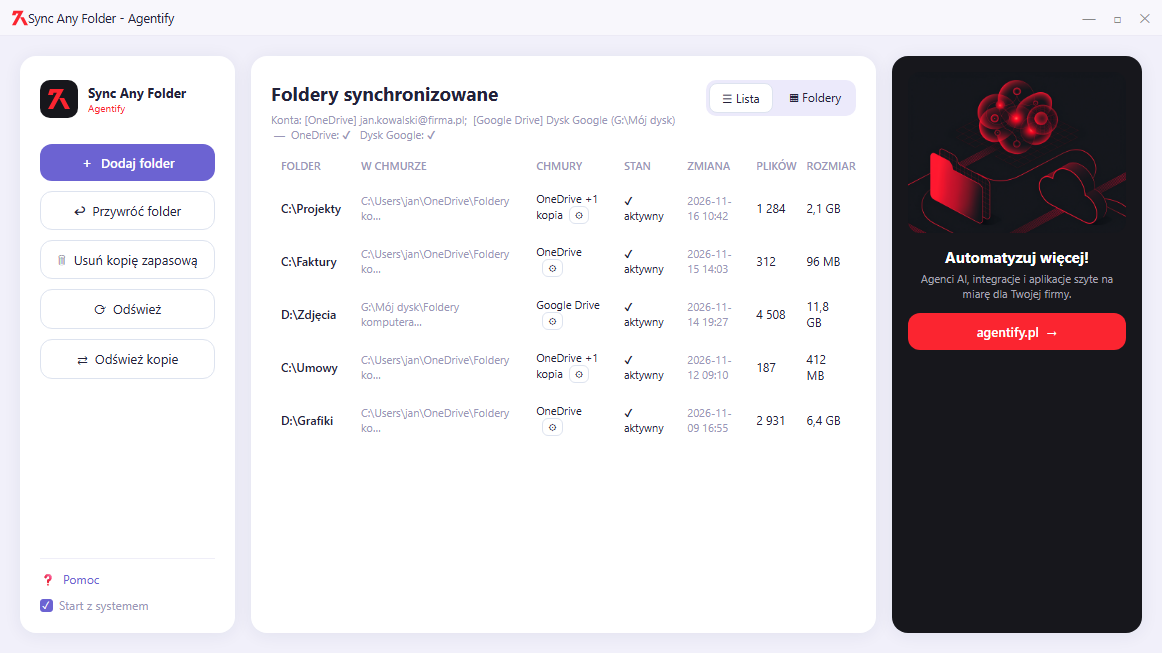
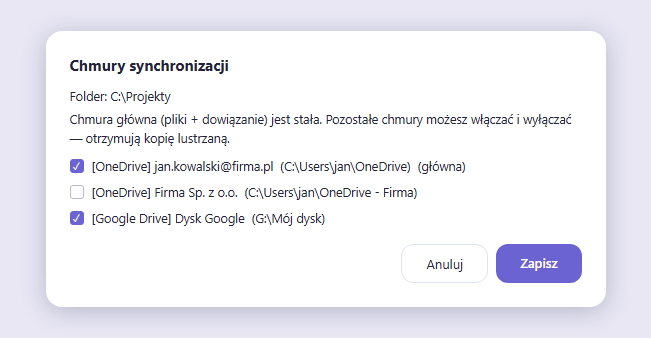
What it looks like
Click a screenshot to enlarge it.

Who it's for
FAQ
No. An NTFS junction stays in the original location — to programs the folder looks and works exactly as before.
Yes, with one click. The app downloads all files from the cloud, removes the link and moves the folder back. The cloud copy remains until you decide to delete it.
Every step is written to a transaction journal. After a crash or shutdown the app offers to roll back and restores the pre-migration state.
OneDrive (personal and business), Google Drive for desktop (streaming and mirror mode) and Dropbox (personal and business). You pick clouds with checkboxes — the first stores the files, the others get a mirror copy.
The full one (48 MB) includes everything and runs immediately. Lite (3 MB) requires .NET Desktop Runtime 8 — if it's missing, it points you to the Microsoft download page.
No. Both installation and operation happen in the regular user profile.
Contact
Central management, team policies or rollout across many machines? Let's talk.